How to Upload a Website to cPanel (Files and MySQL Database)
Move a PHP website from your computer to cPanel hosting: upload the files to public_html, create the database and user, import the .sql file, connect the config file, and check everything with a small tested PHP file.
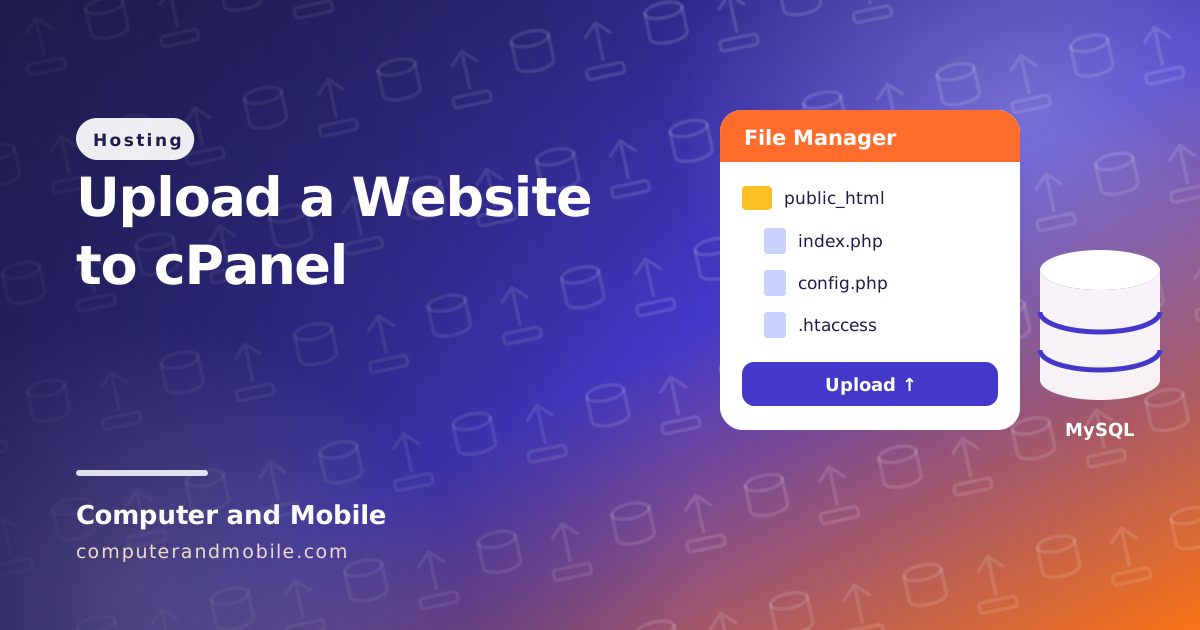
Moving a PHP website from your computer (XAMPP, Laragon, MAMP) or a script you bought to cPanel hosting always has the same five parts: upload the files, create the database, import it, connect the config file, and test. Each part takes a few minutes, and almost every problem comes from one small detail, such as a missing prefix in the database name.
This guide walks through all five, gives you a small PHP file that tells you exactly what is wrong if something is, and lists the errors people hit most.
Before you start
- A ZIP of your site. Zip the contents of your site folder (so
index.phpis at the top of the ZIP), including hidden files such as.htaccess. - The database as a .sql file. In your local phpMyAdmin: choose the database, Export, Quick, format SQL, Export.
- Your cPanel login. It is usually at
yourdomain.com/cpaneloryourdomain.com:2083. On GoDaddy, open your hosting plan and choose cPanel Admin; everything after that is the same. - The PHP version your site needs. Most current scripts need PHP 8.1 or newer.
Step 1: Upload the files
- In cPanel, open File Manager and go to
public_html. That is your main domain's folder. An addon domain or subdomain has its own folder, which cPanel shows under Domains. - Click Upload and choose your ZIP. Wait for the green bar to finish.
- Back in File Manager, right-click the ZIP and choose Extract. Then delete the ZIP.
- Check that
index.phpis directly insidepublic_html, not inpublic_html/mysite/. If it is in a subfolder, select everything inside it and use Move.
For big sites, an FTP program such as FileZilla is easier: use the FTP account from cPanel's FTP Accounts, host ftp.yourdomain.com, port 21 (or SFTP on port 22 if your host allows SSH). To see .htaccess in File Manager, open Settings and tick Show Hidden Files.
Step 2: Create the database and its user
- Open MySQL Databases (or the Database Wizard, which does the same in three screens).
- Create a database, for example
shop. cPanel adds your account name in front, so it becomescpuser_shop. - Under MySQL Users, create a user with a long password. It also gets the prefix:
cpuser_shopuser. - Under Add User To Database, choose that user and database, click Add, tick ALL PRIVILEGES and save. Forgetting this step is the most common cause of “Access denied”.
Step 3: Import the .sql file
- Open phpMyAdmin from cPanel.
- Click your new database in the left column. (If you skip this, the import does not know where to go.)
- Open Import, choose your .sql file and click Import (or Go).
phpMyAdmin shows the maximum upload size on that page. For a bigger file, compress it to .sql.gz or .zip first (phpMyAdmin reads both), or, if you have SSH, import it with mysql -u cpuser_shopuser -p cpuser_shop < site.sql.
If the file was exported from MySQL 8 and your host runs an older MySQL or MariaDB, the import can stop with Unknown collation: utf8mb4_0900_ai_ci. Open the .sql file in a text editor and replace the collation:
-- In the .sql file, before importing into an older MySQL or MariaDB, replace:
utf8mb4_0900_ai_ci
-- with:
utf8mb4_unicode_ci
If the import stops with #1044 Access denied ... to database, the .sql file contains CREATE DATABASE or USE lines. On cPanel you create databases in MySQL Databases, so delete those lines from the file and import again.
Step 4: Connect the site to the new database
Open your site's config file (often config.php, .env or includes/db.php) in File Manager with Edit, and put in the new values, with their prefixes:
<?php
// config.php: the values come from cPanel, MySQL Databases
define('DB_HOST', 'localhost');                 // almost always localhost on cPanel
define('DB_NAME', 'cpuser_shop');               // cPanel adds your account name in front
define('DB_USER', 'cpuser_shopuser');
define('DB_PASS', 'the-database-password');
define('SITE_URL', 'https://yourdomain.com');   // no longer http://localhost/...
If your site saved its own address in the database while it ran on your computer, links and pictures will still point to localhost. Replace the old address in the table that holds it:
-- Run in phpMyAdmin (SQL tab) if old localhost addresses are stored in the database.
-- Your table and column names will be different: this is only the pattern.
UPDATE settings SET value = REPLACE(value, 'http://localhost/mysite', 'https://yourdomain.com');
Do not do this on WordPress: it stores some values in a special format that a plain replace breaks. Use the steps in moving a WordPress site to another host instead.
Step 5: Test it with a small PHP file
Save this as db-test.php, put in the same four database values, upload it next to your site and open https://yourdomain.com/db-test.php. It checks the PHP version, the extensions most scripts need, whether PHP can write files, and the database connection. If the connection fails, it tells you why in plain words:
<?php
// db-test.php: checks that your hosting can run your PHP site and reach its database.
// Upload it to the site's folder, open https://yourdomain.com/db-test.php, then DELETE it.
$host = 'localhost'; // on cPanel the database host is almost always localhost
$name = 'cpuser_shop'; // the database name, with the cPanel prefix
$user = 'cpuser_shopuser'; // the database user, with the same prefix
$pass = 'the-database-password';
$checks = [];
$checks[] = ['PHP ' . PHP_VERSION . ' (most scripts today need 8.1 or newer)', version_compare(PHP_VERSION, '8.1.0', '>=')];
foreach (['pdo_mysql', 'mbstring', 'curl', 'gd', 'fileinfo', 'zip'] as $ext) {
$checks[] = ["PHP extension: $ext", extension_loaded($ext)];
}
$checks[] = ['PHP can write in this folder (needed for uploads and cache)', is_writable(__DIR__)];
try {
$db = new PDO("mysql:host=$host;dbname=$name;charset=utf8mb4", $user, $pass, [
PDO::ATTR_ERRMODE => PDO::ERRMODE_EXCEPTION,
PDO::ATTR_TIMEOUT => 5,
]);
$version = $db->query('SELECT VERSION()')->fetchColumn();
$tables = count($db->query('SHOW TABLES')->fetchAll());
$checks[] = ["Database connected: MySQL $version, $tables tables", true];
} catch (PDOException $e) {
$msg = $e->getMessage();
if (strpos($msg, 'Access denied') !== false) {
$hint = 'Wrong user or password, or the user was never added to the database (MySQL Databases, Add User To Database, ALL PRIVILEGES).';
} elseif (strpos($msg, 'Unknown database') !== false) {
$hint = 'Wrong database name. Copy it from MySQL Databases, including the prefix.';
} elseif (strpos($msg, '2002') !== false || strpos($msg, '2005') !== false) {
$hint = 'The database server cannot be reached. On cPanel use localhost; some hosts show their own host name.';
} else {
$hint = 'Read the message above, or send it to your host.';
}
$checks[] = ["Database error: $msg. $hint", false];
}
?>
<!DOCTYPE html>
<html lang="en">
<head><meta charset="UTF-8"><meta name="robots" content="noindex"><title>Hosting check</title>
<style>body{font-family:system-ui,sans-serif;max-width:760px;margin:30px auto;padding:0 16px}li{margin:8px 0}.ok{color:#15803d}.no{color:#b91c1c}</style>
</head>
<body>
<h1>Hosting check</h1>
<ul>
<?php foreach ($checks as [$text, $passed]): ?>
<li class="<?= $passed ? 'ok' : 'no' ?>"><?= $passed ? '✔' : '✘' ?> <?= htmlspecialchars($text, ENT_QUOTES, 'UTF-8') ?></li>
<?php endforeach; ?>
</ul>
<p><strong>Delete this file when you are done.</strong></p>
</body>
</html>| Part | What it checks |
|---|---|
version_compare(PHP_VERSION, '8.1.0') | Whether the PHP version is new enough. Change it in cPanel's MultiPHP Manager or Select PHP Version. |
extension_loaded() | The extensions most PHP scripts use: database, text, downloads, images, uploads and ZIP files. Missing ones can be switched on in Select PHP Version. |
is_writable(__DIR__) | Whether PHP can save files in the folder, which uploads and caches need |
new PDO(...) | Connects with your four values, then shows the MySQL version and how many tables were imported |
The catch block | Turns the three usual errors (wrong password, wrong name, wrong host) into a sentence that tells you what to fix |
When every line is green, delete db-test.php: it shows details about your server that nobody else needs to see.
Turn on HTTPS
Most cPanel hosts issue a free certificate automatically. Check SSL/TLS Status and click Run AutoSSL if your domain is not green yet, then turn on Force HTTPS Redirect under Domains. The certificate is only issued once your domain points to the hosting. Our free SSL guide covers the details and the mixed content warning.
Common errors after uploading
| Error | Cause and fix |
|---|---|
| 500 Internal Server Error | A rule in .htaccess the server does not accept, or the wrong PHP version. Read the error_log file in the site folder or cPanel's Errors page. |
| A blank white page | A PHP error that is hidden from visitors. The error_log file shows it; very often it is the PHP version. |
| Access denied for user | The prefix is missing from the user or database name, the password is wrong, or the user was not added to the database (Step 2, point 4). |
| SQLSTATE[HY000] [2002] | The database host is wrong. On cPanel it is localhost. |
| Table 'cpuser_shop.Users' doesn't exist | Windows ignores upper and lower case in table names; Linux hosting does not. Use the exact name the table has in phpMyAdmin. |
| Home page works, every other page is 404 | .htaccess was not uploaded (hidden files are easy to miss), so clean addresses do not work |
| Pictures or styles are missing | File names differ in case (Logo.PNG and logo.png are different files on Linux), or the pages still point to http://localhost |
| Index of / with a file list | The site is in a subfolder of public_html. Move the files up one level. |
For a site you update often
Uploading a ZIP is fine once. For a site you keep working on, use the tools most cPanel hosts already include:
- Git Version Control in cPanel, to deploy changes from a Git repository instead of uploading files by hand
- A staging copy on a subdomain such as
test.yourdomain.com, with its own database, to try changes before the real site gets them - Backups (cPanel's Backup page, or JetBackup if your host has it) before every big change
- A web installer for software you sell or give to others, so nobody has to import SQL or edit config files
Scripts that install themselves
Our PHP scripts skip the SQL import. You upload the files, create an empty database in cPanel, and open the installer in your browser: it checks the server and creates the tables and your admin account. The blog, shop and tools scripts also write their own config file and refuse to run the installer a second time. They run on any normal cPanel hosting with PHP 8.1 or newer and MySQL:
- Digital products shop script: sell source code and other downloads, with PayPal checkout, Regular and Extended licenses, and every download stamped with the buyer's license ID
- PHP blog script with admin panel: articles with FAQs, categories, search, SEO and AdSense places
- Online web tools website: 61 tools for developers and webmasters, with an admin panel and ad places
- HTML5 game portal script: a free-games website where you add games and thumbnails from the admin panel, with categories, search and play counts