How to Make a Status Saver and Video Downloader App in Android Studio
Build a WhatsApp status saver that works on Android 11 and newer, in one page of Kotlin: open the statuses folder, show the photos and videos, and save them to the gallery. Then what a full status saver and video downloader app needs, and the Google Play rules.
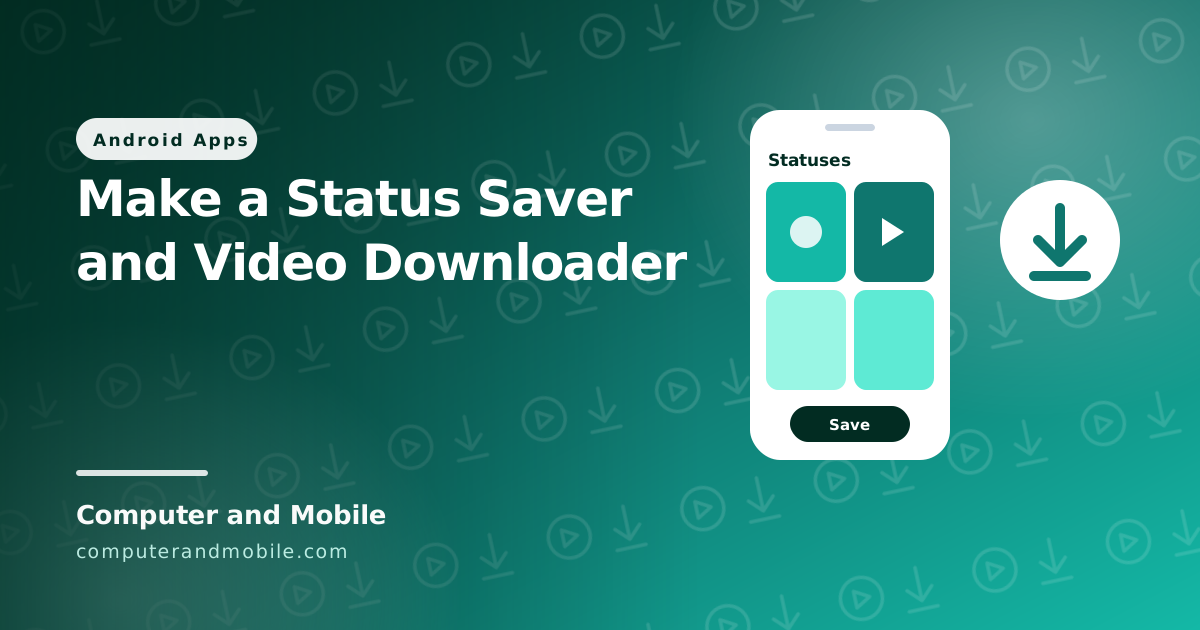
A status saver keeps the WhatsApp statuses you have already watched, so you can save a photo or video before it disappears after 24 hours. A video downloader saves videos from a link. Together they make one of the most installed kinds of tools app on Google Play, and both are built on the same idea: find the media file, show it, and copy it to the gallery.
This guide gives you a working status saver in one page of Kotlin for Android 11 and newer, explains why older tutorials no longer work, then covers what a full status saver and video downloader app adds and the Google Play rules these apps must follow.
How a status saver works
When you view a status, WhatsApp keeps a copy in a hidden folder called .Statuses. On Android 11 and newer that folder is:
Android/media/com.whatsapp/WhatsApp/Media/.StatusesOlder tutorials read that folder with the storage permission. Since Android 11, apps can no longer read other apps' folders that way. The way that works today is the Storage Access Framework: your app opens the system folder picker at the .Statuses folder, the user taps Use this folder once, and your app keeps read access to it. No storage permission is needed at all, which also makes the Google Play review simpler.
The app: one page of code
- In Android Studio choose New Project → Empty Activity, language Kotlin, minimum SDK API 30 (Android 11).
- Add the
documentfilelibrary toapp/build.gradle.ktsand click Sync Now. - Replace everything in
MainActivity.ktwith the code below. - Run it on a phone that has WhatsApp. Open WhatsApp first and view a few statuses, then tap Allow access to statuses and Use this folder.
dependencies {
    implementation("androidx.documentfile:documentfile:1.0.1")
}
package com.example.statussaver // keep the package line Android Studio made for you
import android.content.ContentValues
import android.content.Intent
import android.graphics.BitmapFactory
import android.net.Uri
import android.os.Bundle
import android.os.Environment
import android.provider.DocumentsContract
import android.provider.MediaStore
import android.widget.Button
import android.widget.ImageView
import android.widget.LinearLayout
import android.widget.ScrollView
import android.widget.TextView
import android.widget.Toast
import androidx.activity.ComponentActivity
import androidx.activity.result.contract.ActivityResultContracts
import androidx.core.view.ViewCompat
import androidx.core.view.WindowInsetsCompat
import androidx.documentfile.provider.DocumentFile
class MainActivity : ComponentActivity() {
// WhatsApp keeps the statuses you have viewed here, for 24 hours
private val statusFolder: Uri = DocumentsContract.buildDocumentUri(
"com.android.externalstorage.documents",
"primary:Android/media/com.whatsapp/WhatsApp/Media/.Statuses"
)
private lateinit var list: LinearLayout
// The system folder picker, opened right at the statuses folder
private val pickFolder = registerForActivityResult(ActivityResultContracts.OpenDocumentTree()) { uri ->
if (uri != null) {
contentResolver.takePersistableUriPermission(uri, Intent.FLAG_GRANT_READ_URI_PERMISSION)
getPreferences(MODE_PRIVATE).edit().putString("folder", uri.toString()).apply()
showStatuses(uri)
}
}
override fun onCreate(savedInstanceState: Bundle?) {
super.onCreate(savedInstanceState)
val allowButton = Button(this).apply { text = "Allow access to statuses" }
list = LinearLayout(this).apply { orientation = LinearLayout.VERTICAL }
val screen = LinearLayout(this).apply {
orientation = LinearLayout.VERTICAL
addView(allowButton)
addView(ScrollView(context).apply { addView(list) })
}
setContentView(screen)
// Keep everything clear of the status bar and the navigation bar (Android 15 and newer)
ViewCompat.setOnApplyWindowInsetsListener(screen) { view, insets ->
val bars = insets.getInsets(WindowInsetsCompat.Type.systemBars())
view.setPadding(32, bars.top + 32, 32, bars.bottom + 32)
insets
}
allowButton.setOnClickListener { pickFolder.launch(statusFolder) }
// Allowed before? Show the statuses straight away.
getPreferences(MODE_PRIVATE).getString("folder", null)?.let { showStatuses(Uri.parse(it)) }
}
private fun showStatuses(folder: Uri) {
list.removeAllViews()
val files = DocumentFile.fromTreeUri(this, folder)?.listFiles().orEmpty()
.filter { it.name?.endsWith(".nomedia") == false }
.sortedByDescending { it.lastModified() }
if (files.isEmpty()) {
list.addView(TextView(this).apply { text = "No statuses yet. Open WhatsApp and view a few statuses first." })
return
}
for (file in files) {
val isVideo = file.type?.startsWith("video") == true
val item = LinearLayout(this).apply {
orientation = LinearLayout.VERTICAL
setPadding(0, 24, 0, 24)
}
if (isVideo) {
item.addView(TextView(this).apply { text = "Video: " + file.name; textSize = 16f })
} else {
item.addView(ImageView(this).apply {
setImageBitmap(smallBitmap(file.uri))
adjustViewBounds = true
})
}
item.addView(Button(this).apply {
text = "Save"
setOnClickListener { save(file, isVideo) }
})
list.addView(item)
}
}
// A quarter-size copy is plenty for the list and saves memory
private fun smallBitmap(uri: Uri) = contentResolver.openInputStream(uri)?.use {
BitmapFactory.decodeStream(it, null, BitmapFactory.Options().apply { inSampleSize = 4 })
}
private fun save(file: DocumentFile, isVideo: Boolean) {
val values = ContentValues().apply {
put(MediaStore.MediaColumns.DISPLAY_NAME, file.name)
put(MediaStore.MediaColumns.MIME_TYPE, file.type)
put(
MediaStore.MediaColumns.RELATIVE_PATH,
(if (isVideo) Environment.DIRECTORY_MOVIES else Environment.DIRECTORY_PICTURES) + "/Status Saver"
)
}
val collection = if (isVideo) MediaStore.Video.Media.EXTERNAL_CONTENT_URI
else MediaStore.Images.Media.EXTERNAL_CONTENT_URI
val target = contentResolver.insert(collection, values)
if (target == null) {
Toast.makeText(this, "Could not save", Toast.LENGTH_SHORT).show()
return
}
contentResolver.openInputStream(file.uri)?.use { input ->
contentResolver.openOutputStream(target)?.use { output -> input.copyTo(output) }
}
Toast.makeText(this, "Saved to the gallery", Toast.LENGTH_SHORT).show()
}
}| Part | What it does |
|---|---|
DocumentsContract.buildDocumentUri | Builds the address of the .Statuses folder, so the picker opens right there |
OpenDocumentTree | The system folder picker. The user allows the folder once. |
takePersistableUriPermission | Keeps the access after the app is closed, so the user is asked only once |
DocumentFile.listFiles() | Lists the statuses, newest first, without the .nomedia file |
inSampleSize = 4 | Loads the photos at a quarter size for the list, so a long list does not run out of memory |
MediaStore with RELATIVE_PATH | Saves the copy into Pictures/Status Saver or Movies/Status Saver, where the gallery shows it |
WhatsApp Business keeps its statuses in Android/media/com.whatsapp.w4b/WhatsApp Business/Media/.Statuses; add a second button with that path. On phones older than Android 11 the folder was WhatsApp/Media/.Statuses and was read with the storage permission.
From a status saver to a full app
The one-page app proves the core. A status saver and video downloader that people keep on their phones adds:
- A grid with video thumbnails and a built-in player, instead of a plain list
- WhatsApp and WhatsApp Business together, refreshed automatically when new statuses arrive
- A link downloader: paste a link, or share it to the app from another app, choose the quality and download
- An in-app browser that finds the video on a page and shows a download button
- A download manager with progress, pause and a list of finished files
- Privacy: a PIN lock and a hidden vault for saved files
- Ads and consent: AdMob with Google's GDPR message
Each of those is days of work, and the link downloader is the hardest part, because every site serves its videos differently and changes it over time.
Google Play rules for these apps
- No other brand in your app's name or icon. “Status Saver” is fine; “WhatsApp Status Saver” with a WhatsApp-style logo is not. Say in the description that the app is not affiliated with WhatsApp.
- No YouTube downloading. YouTube's terms do not allow it, and Google Play removes apps that do it. Most downloaders on Google Play block YouTube on purpose.
- Respect copyright. Present the app as a way to save your own media and media you have permission to keep. Apps that promote downloading other people's content get intellectual property complaints.
- Ask for as little as possible. With the folder picker and MediaStore, the app needs no storage permission at all.
Common problems
| Problem | Cause and fix |
|---|---|
The picker opens at the storage root, not at .Statuses | The folder address is wrong. Build it with DocumentsContract.buildDocumentUri as above; for WhatsApp Business the space in “WhatsApp Business” must stay in the path. |
| “No statuses yet” | WhatsApp only keeps statuses you have opened. View a few, then come back. |
| The list is empty for WhatsApp Business | It uses its own folder (com.whatsapp.w4b) |
| Saved files do not appear in the gallery | The file was written without RELATIVE_PATH and a media type. Save through MediaStore as above. |
| The app crashes with many photos | Full-size images use too much memory. Load smaller copies (inSampleSize) or use an image library. |
The full version, from an app live on Google Play
Our video downloader and status saver source code is built from an app that is live on Google Play, cleaned and renamed so you can publish it under your own name. It is Kotlin, Jetpack Compose and Media3:
- Video downloader: paste a link from TikTok (without watermark), Instagram (reels and carousels), Facebook, X, Pinterest, Dailymotion or Vimeo, pick 480p, 720p, 1080p or MP3, and save. YouTube is blocked on purpose for the Google Play policy.
- Status saver for WhatsApp and WhatsApp Business
- An ad-free in-app browser with a download button, a floating download button and a quick-settings tile
- An encrypted PIN vault and an app lock
- Media tools: trim, extract audio, set as ringtone or live wallpaper, and a background player
- AdMob with Google's GDPR message, an App Open ad and interstitials
Where to go next
- Reskin an Android app before you publish it
- Publish your app on Google Play, including the 12 testers rule
- Add AdMob ads the right way